
Get change reports and manage Distill monitors with AI
Ask ChatGPT, Claude or another assistant which prices changed this week. In the same chat, you can add a list of URLs to your Watchlist, change their check schedules or investigate a failed check.
Connect your assistant
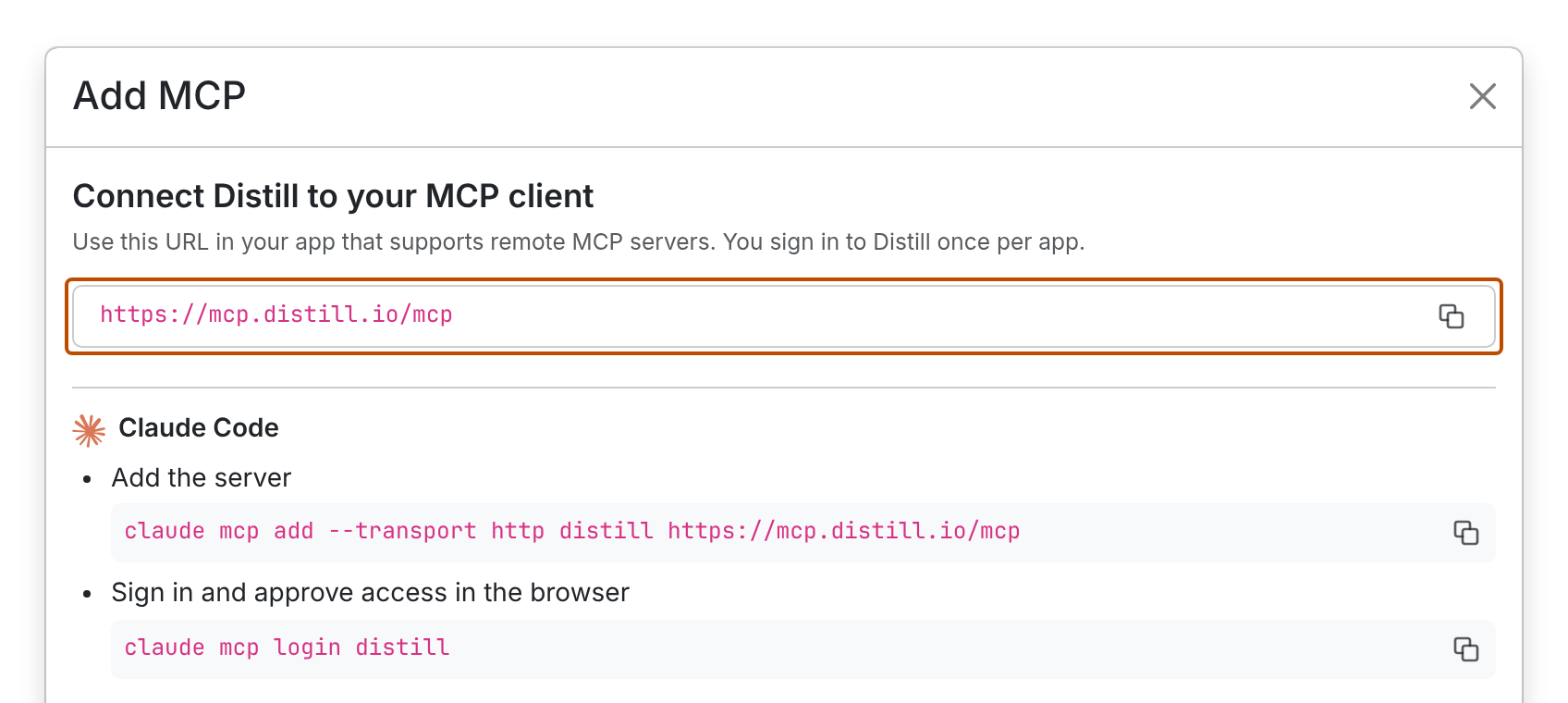
Use Distill’s Model Context Protocol (MCP) server URL below, or copy it from Add MCP in your Watchlist. For other MCP clients, choose a remote HTTP connection with browser sign-in (OAuth).
https://mcp.distill.io/mcp
ChatGPT
- Open Plugins in ChatGPT on the web. Select +, then Add custom MCP server.
- Name it
Distill. Under Connection, paste the server URL and choose OAuth for authentication. - Review the warning, acknowledge it and select Create as a plugin.
- Install the plugin and connect your Distill account. In a chat, type
@and select Distill.
If the option to add a server is missing, check your plan and workspace permissions. OpenAI’s guide to custom MCP servers
Claude.ai and Claude Desktop
On an individual plan, open Customize → Connectors → + Add → Add custom connector. Name it Distill, paste the server URL, review the sign-in settings and select Add.
On Team or Enterprise, an owner or authorized Enterprise member must first add Distill under Organization settings → Connectors → Add → Custom → Web. Once it’s available, each member opens Customize → Connectors, selects Distill and clicks Connect to sign in with their own account.
To use Distill in a conversation, open + → Connectors in the chat and enable Distill. Claude’s connector guide
Claude Code
claude mcp add --transport http distill https://mcp.distill.io/mcp
claude mcp login distill
Codex
codex mcp add distill --url https://mcp.distill.io/mcp
codex mcp login distill
OpenCode
opencode mcp add distill --url https://mcp.distill.io/mcp --global
opencode mcp auth distill
Approve access
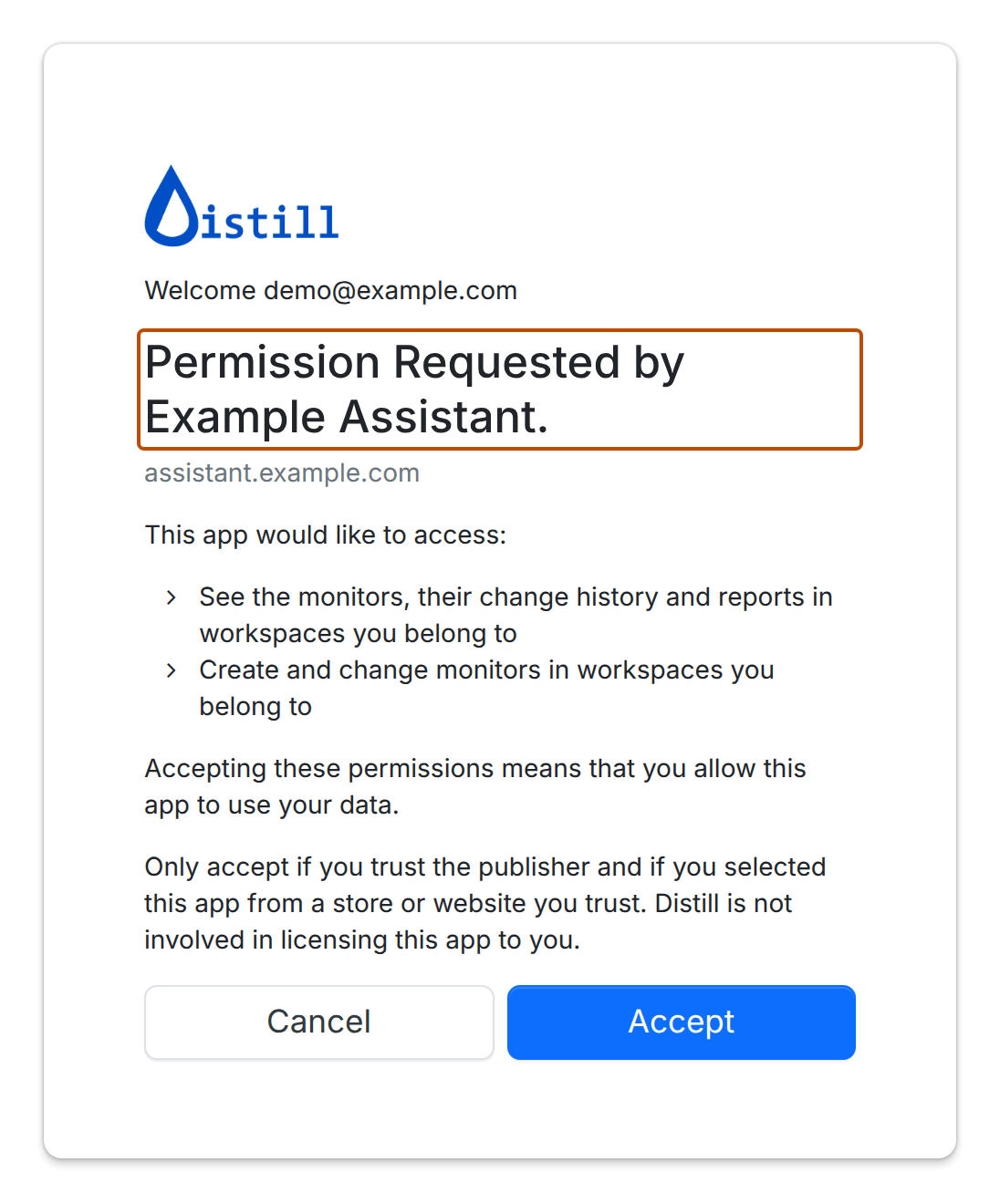
Sign in on Distill’s approval page and check the app name before selecting Accept. Even for reports, the app requests both read and write access across your workspaces. Your role applies in each one. A viewer can read monitors, and an editor can change them.
The app can read captured page content, change history, check and alert logs, and settings such as email addresses and webhook URLs. Distill keeps saved macro and scraper inputs hidden from the assistant.
Get a change report
Replace Research and Pricing in these examples with your workspace and label names. Leave out the workspace to use your personal Watchlist.
In Research, which monitors labeled Pricing changed in the last seven days? Show the date, the URL, and the old and new prices wherever the captured text contains them.
Open the monitor’s change history to check a reported price against the two versions. If you request important changes, Distill also includes changes that have no AI summary yet.
Add monitors in bulk
Paste your URLs one per line after this prompt.
Compare these URLs with the monitors in Research. Add each missing URL with the Pricing label and a daily check. List the URLs you added, skipped or couldn’t finish.
A URL on its own creates a whole-page monitor that checks in the cloud every three hours. To receive an alert, specify an action when you add the monitor. For a CSV or Distill JSON export, use Watchlist import.
Distill creates each monitor before saving its conditions and actions. If the batch stops, compare the original URLs with your Watchlist. Finish setting up any monitor named in an error and resubmit only the missing URLs.
Update and organize monitors
In Research, list the active monitors labeled Pricing and their schedules. Wait for my confirmation, then change those monitors to check every six hours. Show me their saved schedules.
If an update stops partway, ask the assistant to read back the saved settings and finish the outstanding changes. You can also pause or resume monitors, move them to Trash, or restore them. Deleting a label removes it from every monitor that uses it.
When editing alerts, ask the assistant to list the current actions and confirm which ones to keep. Saving the list removes any omitted action the assistant can manage. Local-only actions stay in place. Email addresses and phone numbers for alerts must already belong to the workspace.
Find and fix monitor errors
Which monitors in Research failed their latest check? Show the recorded error for each one and suggest a next step.
For example, if a monitored page moved and you know its new URL, ask the assistant to update that monitor. After its next scheduled check, ask whether the check succeeded. To test sooner, select Check for changes in the Distill Watchlist. Troubleshoot errors in checks
If a check succeeded but an alert seems to be missing, ask whether Distill triggered the alert and recorded an error. A queued alert can also have an empty error field.
Troubleshooting
Why does Distill show “Authorization request rejected”?
An approval page expires after ten minutes. If the page expired or your sign-in session ended, restart the connection from the assistant. If Distill says the client is blocked, that app cannot connect.
Why do I need to sign in again?
Approval lasts up to 90 days and expires after 30 days of inactivity. Connect again from the assistant.
Why do I get “Access denied”?
Check the Distill account and workspace name. Ask the assistant to list the monitors in that workspace. If it can list them but cannot make changes, ask a workspace admin to check your edit access.
Why can’t the assistant find my monitor?
Name the shared workspace if the monitor is there. Ask specifically for monitors in Trash if you want to restore one. Manage Website (sitemap) monitors in the Distill app. The assistant can’t list or edit them.
Tool reference
Your app may show a tool name when it asks you to approve an action. In these names, sieve means a monitor and sieve_data means a recorded change.
| Task | Tools |
|---|---|
| List workspaces, monitors and labels | workspace_list, sieve_list, tags |
| Read a monitor’s settings or check and alert logs | sieve_detail, sieve_check_log, sieve_action_log |
| Read change history or compare two versions | sieve_data_list, sieve_data_detail, sieve_data_diff |
| Create, update, pause, resume or trash a monitor | sieve_create, sieve_update, sieve_pause, sieve_resume, sieve_delete |
| Create, rename or delete a label | tag_create, tag_update, tag_delete |