
Change Feed and Change Reports
The Change Feed is a timeline of the changes Distill has detected across the monitors in a workspace. The newest change is at the top. You can filter the feed, open any change to inspect it, and export the changes to a CSV file to use as a report.
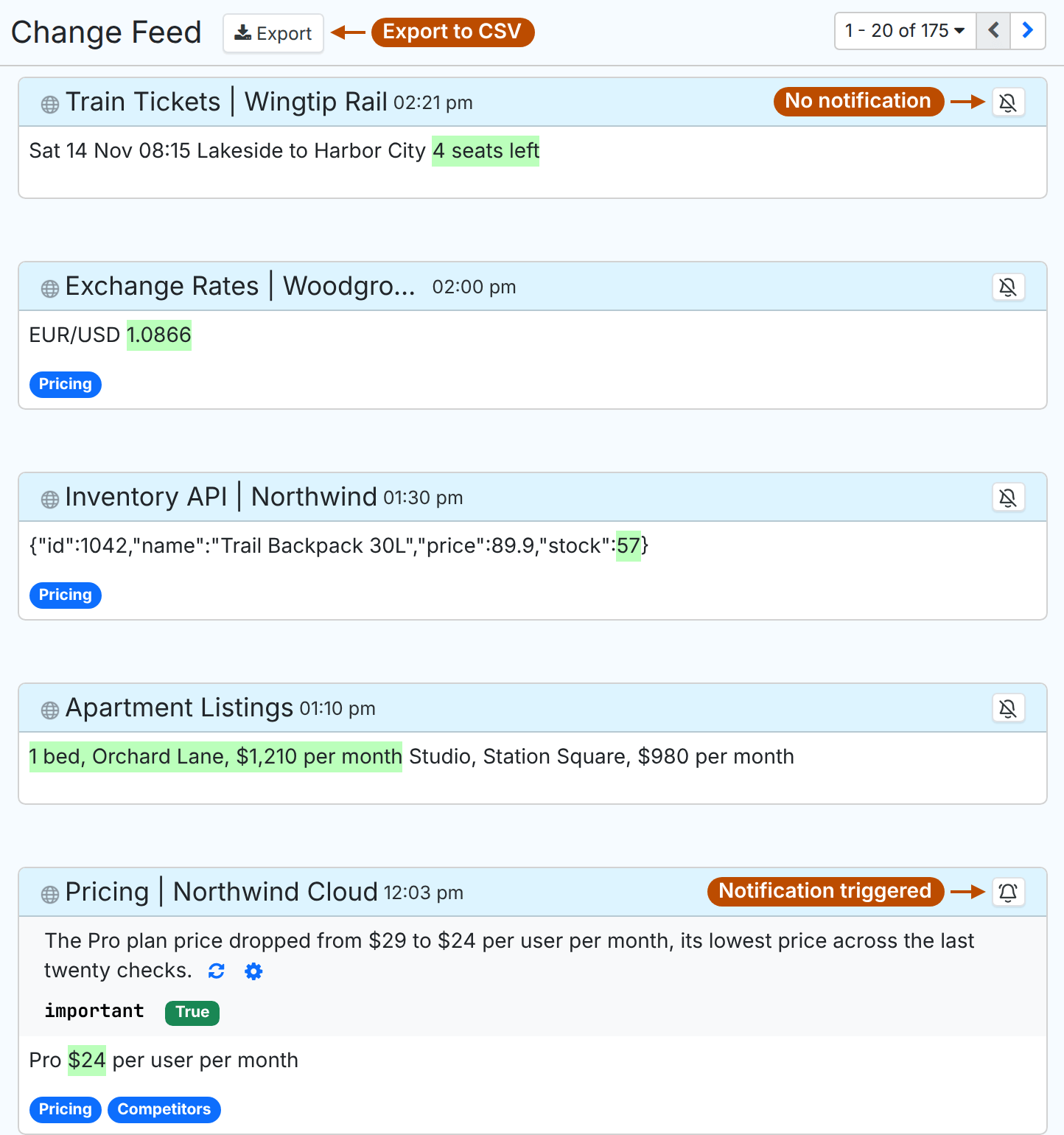
When to use the Change Feed
- Check what changed today. One page lists the changes of every monitor, so you do not open monitors one by one.
- Catch up after time away. A Last viewed line shows where you stopped the last time.
- Review what sent alerts. Search for
triggered:trueto list only the changes that triggered a notification. - Send a report. Export a week or a month of changes to a spreadsheet for people who do not use Distill.
How is the Change Feed different from the Watchlist and Change History?
| View | What it lists | Use it to |
|---|---|---|
| Watchlist | Monitors, one row per monitor | Add and manage monitors and see the latest state of each one |
| Change History | Changes of a single monitor | Review how one page changed over time |
| Change Feed | Changes of all monitors, one card per change | See what changed recently across the workspace, and export it |
The feed lists changes from monitors that are in your Watchlist, including monitors that are turned off. Changes from monitors in the Trash are not listed. Each workspace has its own feed.
How to open the Change Feed?
- Open the Watchlist in the web app or in the browser extension.
- Click Feed in the sidebar, just below All.
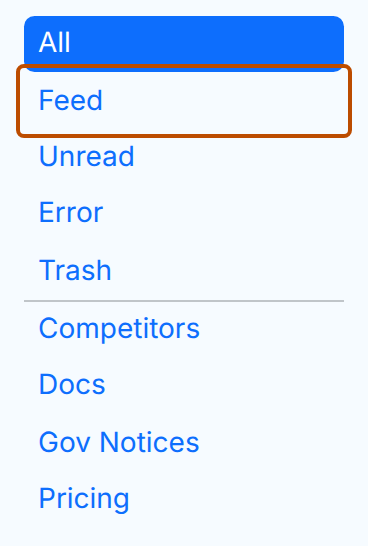
The Feed link opens the feed with this search already filled in:
triggered:true OR important:true
It shows the changes that triggered a notification and the changes that pass the important:true filter (see Search and filter the feed). Empty the search box to list every change.
If you do not use AI Change Summary, important:true matches every change, so the Feed link lists all of them. To see only the changes that sent a notification, search for triggered:true.
What does a card show?
Each change has its own card. The gear, Change History and Explore diff buttons appear when you hover over a card.
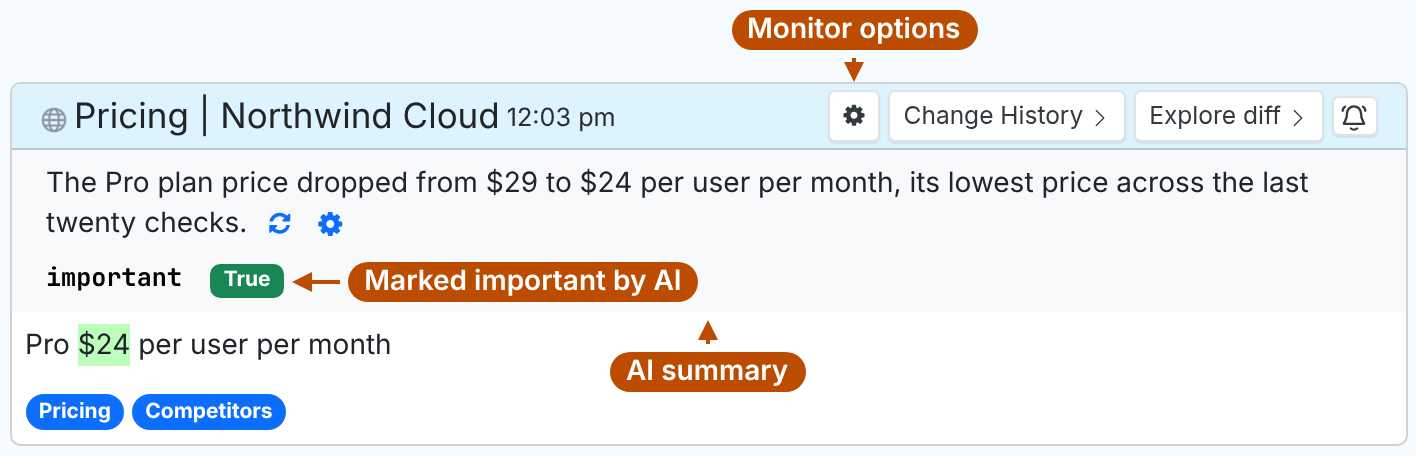
| Part of the card | What it does |
|---|---|
| Monitor name | Opens the monitored page in a new tab. |
| Time | When the change was recorded. Hover over it to see the date and time. |
| Gear button | Opens the monitor’s options (Edit Options) in a side panel. |
| Change History | Opens the monitor’s Change History in a side panel, at this change. |
| Explore diff | Opens the diff for this change. For a Website Monitor, it opens the Changes page with every changed page of that check. |
| Bell icon | A ringing bell means the change triggered a notification. A crossed bell means it did not. Hover to see Notification Triggered or Notification Not Triggered. Click it to see how the monitor’s conditions were evaluated for this change. |
| AI summary | Shown when the change has an AI Change Summary, with its fields such as important. |
| Change text | A short preview of what changed. When a change has both added and deleted text, the preview shows only the added text. |
| Labels | The labels of the monitor. |
Close a side panel to return to the feed. Your search stays as it was.
The feed shows 20 changes per page. Use the pager at the top right to move to the next page or jump to any page.
New and viewed changes
- A Last viewed line separates the changes recorded since your last visit from the older ones. Distill records a visit 5 seconds after you open the feed.
- When new changes arrive while the feed is open, a View 1 new change (or View 3 new changes) button appears at the top. Click it to reload the feed. The newly loaded changes are highlighted.
- The feed has no read or unread state for individual changes, and no button to mark them. Looking at a card in the feed does not mark its monitor as read in the Watchlist. Opening Change History from a card does mark that monitor as read, the same as opening it from the Watchlist.
Search and filter the feed
Type in the Search Change Feed box above the feed. The feed updates as you type, and the box suggests the filters as you go.
Plain words match the monitor’s name or URL. Filters narrow the feed further:
| Filter | Shows changes | Example |
|---|---|---|
triggered:true |
That triggered a notification | triggered:true |
triggered:false |
That did not trigger a notification | triggered:false |
important:true |
That the AI summary marked as important. Changes that have no AI summary are also included. | important:true |
important:false |
That the AI summary marked as not important | important:false |
label: |
From monitors that have the label | label:News |
-label: |
From monitors that do not have the label | -label:News |
has:label |
From monitors that have at least one label | has:label |
type: |
From monitors of one type: webpage, pdf, doc, json, xml, feed, website, scraper or uptime |
type:pdf |
device: |
From monitors that run on the named device | device:"This Device" |
-device: |
From monitors that do not run on the named device | -device:"This Device" |
How to combine them:
- Separate filters and words with a space to require all of them:
label:News triggered:trueshows changes from monitors labeled News that triggered a notification. - Put
ORin capital letters, with a space on each side, between alternatives:triggered:true OR important:true. - Put a label or device name that contains spaces in double quotes:
label:"Price Watch". - Put
-before a word to leave out monitors whose name or URL contains it:pricing -staging.
The Watchlist filters is:, in: and no: do not work in the feed. They are treated as plain words, so they usually match nothing.
A search is part of the page address. Bookmark the page to reopen the feed with the same search.
Export the Change Feed to CSV
The export downloads the changes of a period as a CSV file, with the feed’s current search applied.
- Open the Change Feed.
- Search or filter the feed so that it lists the changes you want. Leave the search box empty to export every change.
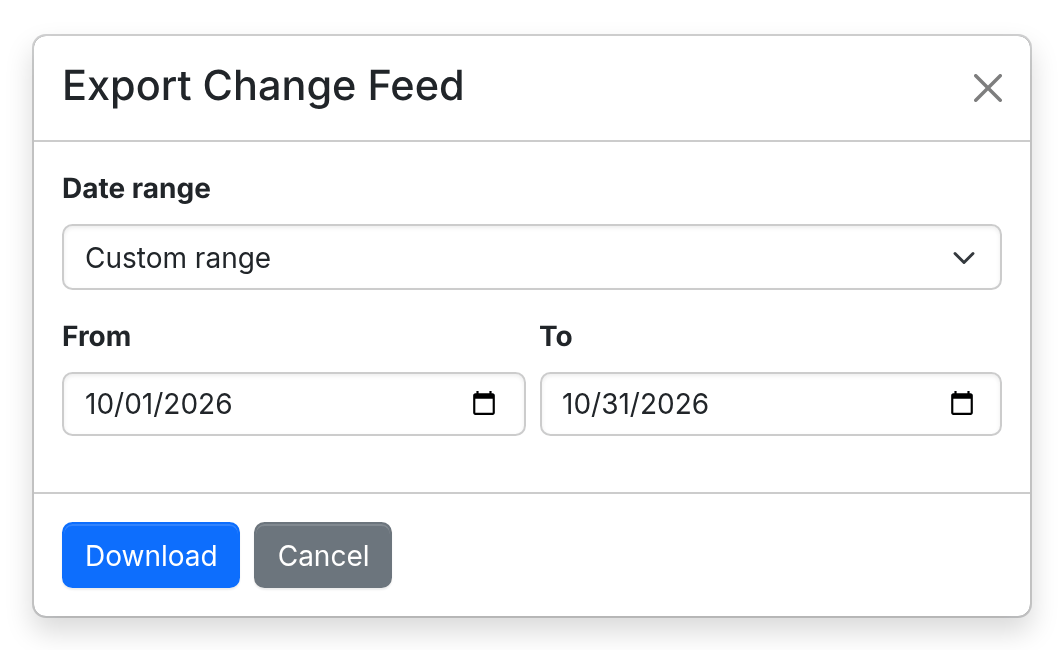
- Click Export next to the Change Feed heading. The Export Change Feed dialog opens.
- Choose a Date range:
- Past 7 days – the last 7 × 24 hours up to now.
- Past 30 days – the last 30 × 24 hours up to now.
- Custom range – pick a From and a To date. Both days are included in full, in your local time.
- Click Download. The dialog shows the progress, for example Exported 500 of 1240 changes, and closes when the file has downloaded.
The file is named change-feed, followed by the date and time of the export, for example change-feed 2026-11-19 14-05.csv. It opens in Excel, Google Sheets and other spreadsheet apps. Changes are sorted from newest to oldest.
Good to know:
- Download stays disabled for a custom range until both dates are set and From is not later than To.
- The export covers the workspace you are in and uses the search that the feed had when you clicked Export.
- Closing the dialog while it is exporting cancels the export.
- When no change matches, the file has the header row and nothing else.
Columns in the CSV file
The column names are always in English, whatever language you use Distill in.
| Column | What it holds |
|---|---|
Date (Local Time) |
When the change was recorded, as YYYY-MM-DD HH:MM:SS, in the time zone of the device you exported from |
Monitor |
Name of the monitor |
URL |
URL of the monitored page |
Labels |
Labels of the monitor, separated by commas |
Summary |
AI summary of the change. Empty when the change has no AI summary. |
Important |
true or false from the AI summary. Empty when the change has no AI summary. |
Summary Data |
All fields of the AI summary, including your custom fields, as JSON |
Change Preview |
The change text shown on the card, as plain text |
Triggered |
true when the change triggered a notification, false when it did not. Empty when this was not recorded. |
View in Distill |
Link that opens this change in the web app. Empty when you export from the extension without being signed in. |
Monitor ID |
ID of the monitor |
Change ID |
ID of the change |
Limits
- A date range longer than 2 days can export up to 10,000 changes. If more changes match, nothing is downloaded and Distill asks you to choose a shorter date range.
- A custom range of 1 or 2 days has no limit on the number of changes.
- The feed and the export can only include changes that are still in a monitor’s Change History. The number of changes kept depends on your plan.
Use the export as a report
A report is a search plus a date range. Set the search, export, and open the file in a spreadsheet.
Weekly report of changes that triggered a notification
- Search for
triggered:true. - Click Export, choose Past 7 days and click Download.
Every row is a change that triggered a notification. The first rows of such a file look like this, with six of the twelve columns shown:
| Date (Local Time) | Monitor | Labels | Summary | Important | Triggered |
|---|---|---|---|---|---|
| 2026-11-02 12:03:00 | Pricing | Northwind Cloud | Pricing,Competitors | The Pro plan price dropped from $29 to $24 per user per month, its lowest price across the last twenty checks. | true | true |
| 2026-11-02 09:00:40 | Careers | Tailspin Toys | Competitors | true | ||
| 2026-11-02 02:49:00 | Woodgrove Help Center | true |
Summary and Important are empty for changes that have no AI summary. Use View in Distill to open a change from the spreadsheet.
Monthly report for one label
- Search for
label:News, with your own label in place ofNews. Addtriggered:trueto keep only the changes that triggered a notification. - Click Export, choose Past 30 days and click Download.
For a calendar month, choose Custom range and set From and To to the first and last day of the month.
Important changes according to the AI summary
- Search for
important:true. - Click Export, choose a date range and click Download.
- In the spreadsheet, filter the
Importantcolumn totrue. This removes the changes that have no AI summary, which theimportant:truefilter also lets through.
Custom fields from your AI summary settings are in the Summary Data column.
Change Feed in the mobile app
The Distill mobile app has a Feed tab that shows the same timeline for the selected workspace, with quick filters for All, Triggered, Important and each of your labels. Export is available in the web app and the browser extension only.
Troubleshooting
| What you see | What it means | What to do |
|---|---|---|
| No recent changes yet | No change matches the search, or the workspace has no changes yet. | Empty the search box. If the feed is still empty, wait for your monitors to detect a change, or add a monitor. |
| Too many changes to export. Please choose a shorter date range. | More than 10,000 changes match in a date range longer than 2 days. | Choose a shorter range and export in parts, or narrow the search first. |
| Could not export the Change Feed. Please try again. | The export could not fetch the changes, for example because the connection dropped. | Check your connection and click Download again. |
| Error fetching monitor data | The feed could not be loaded. | Reload the page. |
| Previous change before … is not available. after clicking the bell icon | The change is the oldest one in the monitor’s Change History, so there is nothing to compare it with. | Open Change History to view the change. |
Suggested Reading